Signals
From the catalog of signal templates, to the signal setups you switch on, to the signals that tell you who to contact now.
A signal is one event that gives you a reason to reach out now, like "Acme's new VP Sales started last week" or "Globex's Head of Data commented on a competitor's post".
Why it matters
Signals turn a flat list of accounts into a short list of people to contact today, each with a reason they will recognise. You reach out while the event is still fresh, not weeks later.
How it works
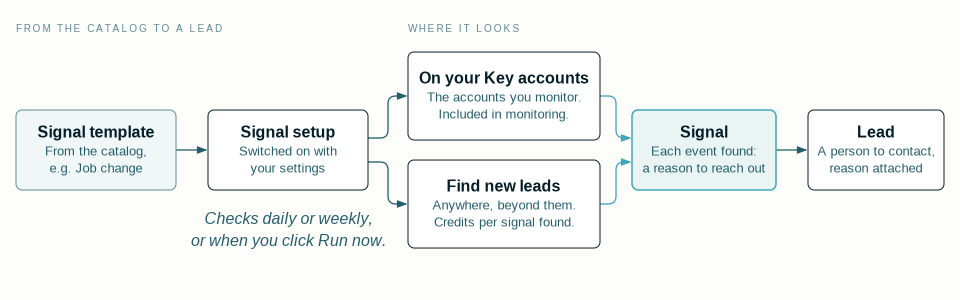
Signals come in three layers:
- Signal template: a ready-made signal from the catalog, like Job change, Mentioned keywords on LinkedIn, Engaged with competitors on LinkedIn or Champion joined a new company or promoted. The signal reference describes each one.
- Signal setup: a signal template you switched on, with your settings: the keywords to look for, the list to read, where to look. You can set up the same template several times, for example once per set of keywords.
- Signal: what a signal setup finds. Each signal is tied to a lead and an account.
A signal setup can look in two places:
- On your key accounts: Sillage checks the accounts you monitor. This is included in the monitoring of those accounts.
- Find new leads: Sillage looks beyond your key accounts for new people and companies that match. You pay per signal found, and you can set a Maximum signals per week.
Then:
- Sillage checks by itself every day or every week, depending on the signal, as long as Run automatically is on. A new setup checks once right away. You can also click Run now.
- Some signals need a list. "Engaged with competitors on LinkedIn" reads your Competitor list, "Champion joined a new company or promoted" reads your Champion list.
- Each signal setup belongs to one business unit and uses its persona.
Where you find it
- In the app: Signal agents in the sidebar. The Signals tab lists your signal setups with what each one found in the last 3 months. Add signal opens the catalog. The Runs tab shows each check and how many new signals it brought. The signals themselves show on your leads.
- With your assistant: ask "Set up a job change signal on my key accounts."
- With the API: Signal templates, Signal setups and Signals.