Activate a signal setup
Pick a signal from the catalog, set it up, and start getting reasons to reach out.
A signal setup is a ready-made signal you switch on with your own settings, like "Job change" on your key accounts or "Mentioned my brand" across your market. Once it is on, Sillage brings you signals and the leads behind them.
Before you start
- Create your persona with at least one job title and one location.
- To watch your key accounts, monitor at least one.
- Some signals watch a list, like your competitors or your champions. You can build it beforehand or create it while you set up the signal.
Open the signal library
Click Signal agents in the sidebar: it is where your signal setups live. Click Add signal.
Pick a signal
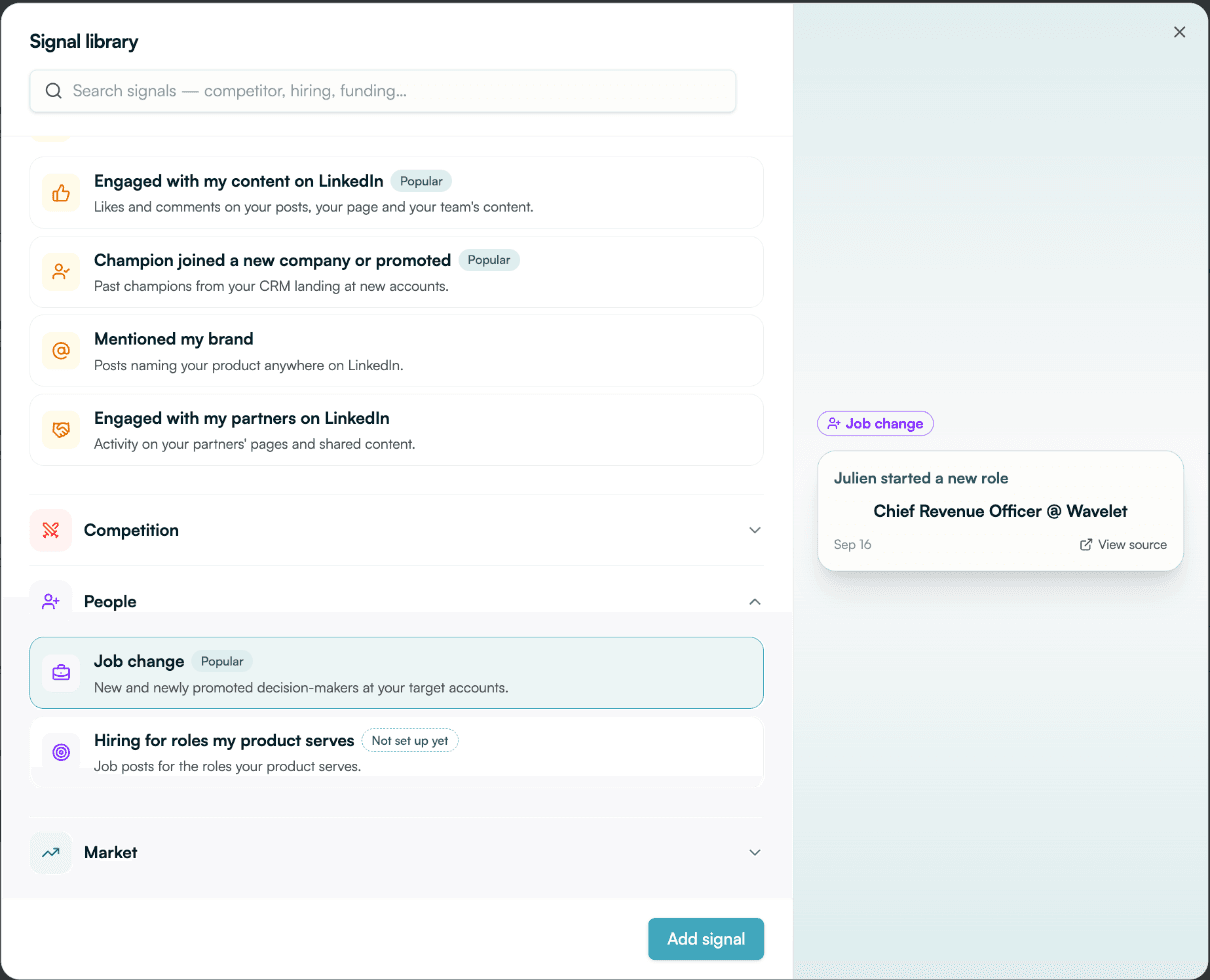
Browse the Signal library or search it ("competitor", "hiring", "funding"). The right side shows an example of what the signal finds. Pick one and click Add signal.
Answer its questions
Each signal asks only what it needs. The most common questions:
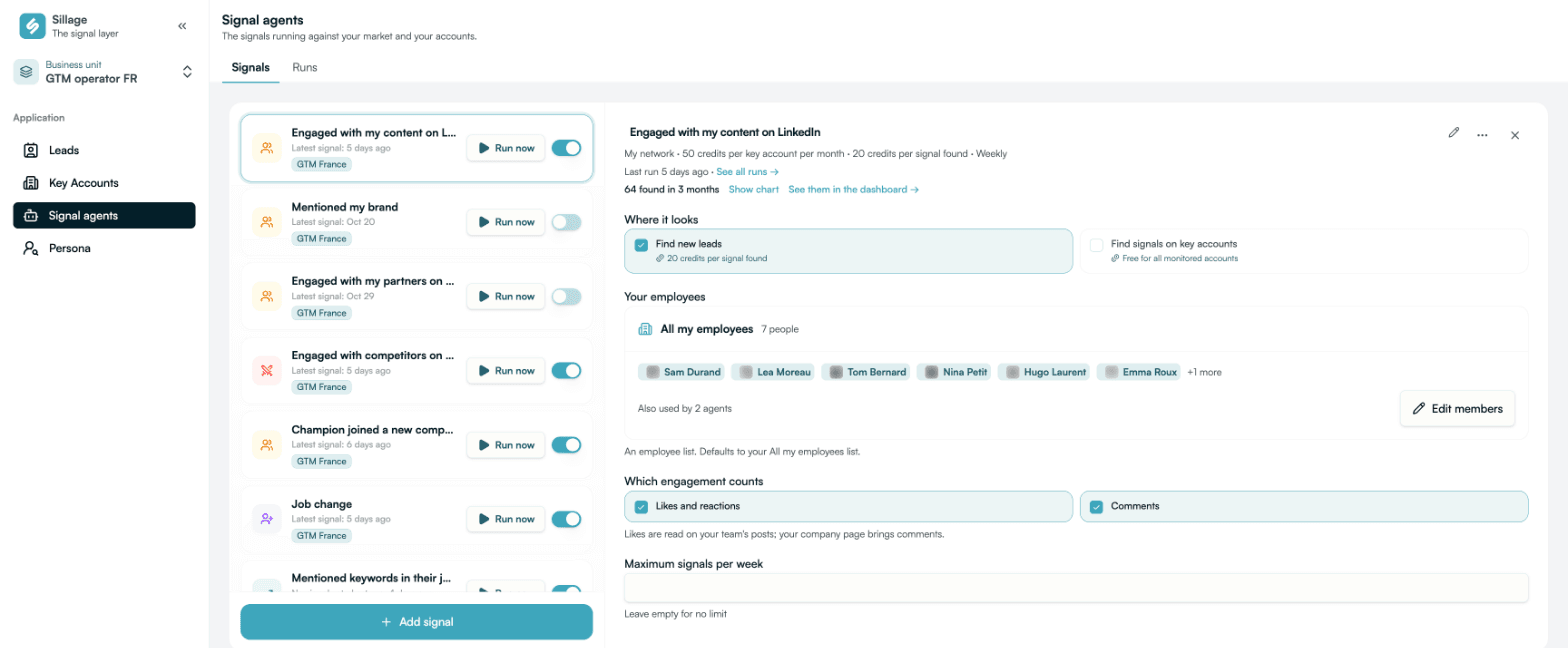
- Where it looks: Find signals on key accounts (the accounts you monitor), Find new leads (new accounts across your market), or both.
- Which list: for a signal that watches a list. Use Switch to pick another list, New list to create one here, or Edit members to change who is on it.
- Maximum signals per week: shown with Find new leads, to cap what you spend each week. Leave it empty for no limit.
- Run automatically: on by default. Sillage then checks every day or every week, depending on the signal.
Create it
Click Create signal. If the button says "Monitor at least one account first", monitor an account in Key Accounts, or choose Find new leads instead.
To check right away, click Run now on the signal in your list. Click the signal to change its answers at any time: each change saves itself. Its ⋯ menu holds Duplicate signal and Remove signal.
How you know it worked
- Your signal shows in the list on Signal agents. Click it: its header reads Daily, Weekly or Manual, then "N found in 3 months", or "No signal yet" until the first one arrives.
- The Runs tab shows each check as Running, then Completed, with the new signals it found.
Next
Read my leads and act on the signals Sillage found.