Set up my account and workspace
Fill in your profile, describe your company, and invite your team.
Your teammates see who you are, Sillage knows what your company sells, and your team is in the workspace. Do this once, on your first day.
Fill in your profile
Click Settings at the bottom of the sidebar, then Account. Under Profile, type your First Name and Last Name. To add a photo, paste the link to your LinkedIn profile picture in Profile Picture. Each change saves as soon as you leave the box.
Choose your weekly email
Under Notifications on the same page, turn the weekly report on or off. When it is on, you get a summary of your leads every Monday morning.
Describe your company
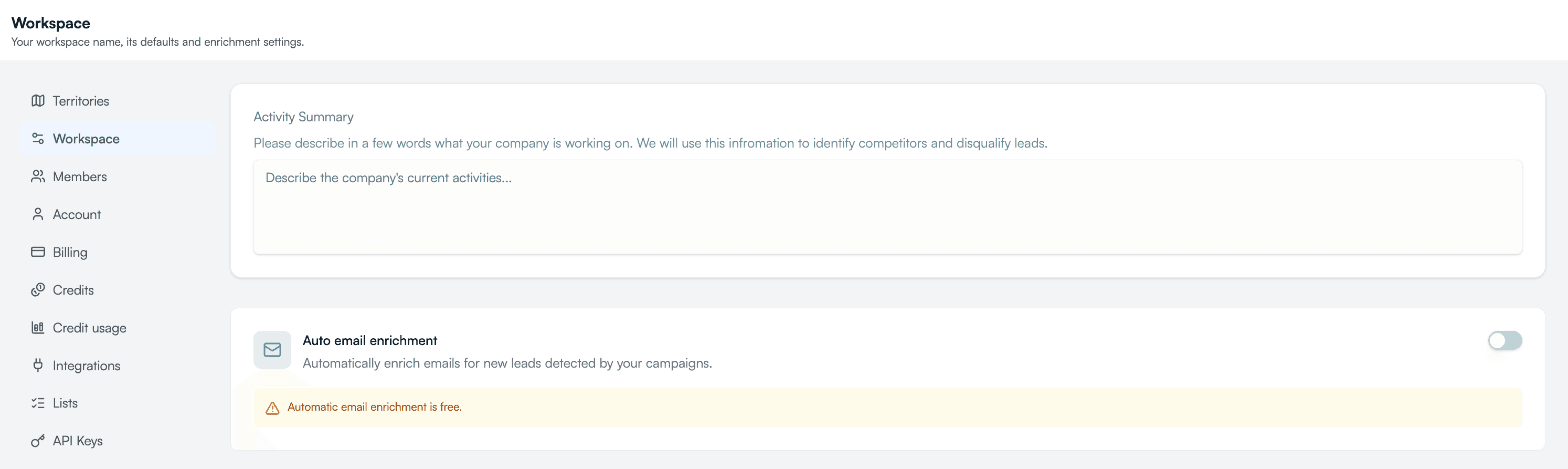
Open Settings → Workspace. In Activity Summary, write in a few words what your company does, for example "We sell a sales tool that tells reps which accounts to contact now". Sillage uses it to spot your competitors and to set aside leads that are not a fit.
On the same page, Auto email enrichment makes Sillage find the email of every new lead for you. Only admins can change it.
Invite your team
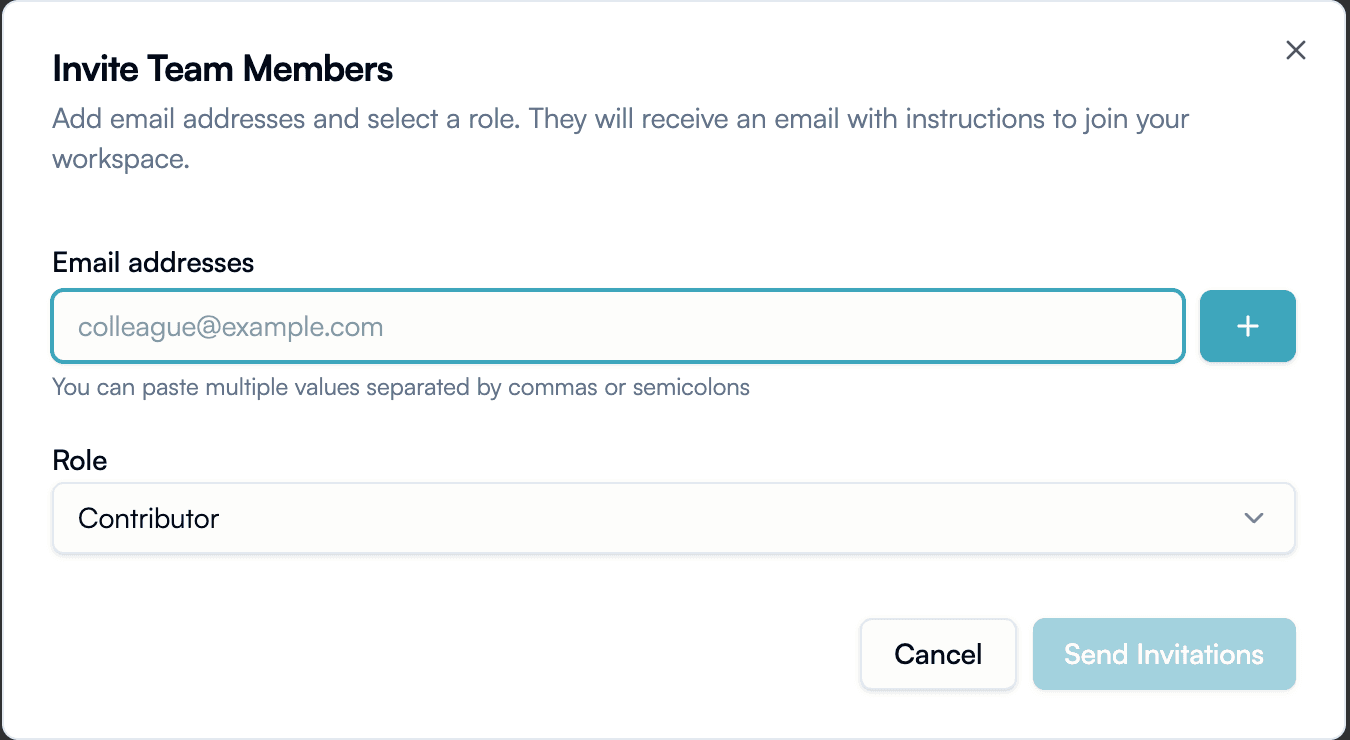
Open Settings → Members and click Invite Member. Type or paste your teammates' emails, pick a Role, then click Send Invitations (the button shows how many). Each teammate gets an email to join.
- Admin: sets up the workspace: persona, lists, monitoring, territories, CRM and credits.
- Contributor: works the leads. A contributor can only invite other contributors.
See Who can do what for the full list.
Who can do what
| What you want to do | Admin | Contributor |
|---|---|---|
| See and work the leads: status, owner, export | Yes | Yes |
| Find a lead's email or phone number | Yes | Yes |
| See the persona and the key accounts | Yes | Yes |
| Change the persona | Yes | No |
| Create and change lists, add accounts | Yes | No |
| Start or stop monitoring a key account | Yes | No |
| Switch on or change a signal setup | Yes | Yes |
| Run a signal setup now | Yes | No |
| Create territories | Yes | No |
| Connect a CRM and change its settings and field mapping | Yes | No |
| Turn on Auto email enrichment | Yes | No |
| Invite contributors | Yes | Yes |
| Invite admins, change a role, remove a member, accept join requests | Yes | No |
| See Billing, Credits and Credit usage, top up | Yes | No |
| Create an API key | Yes | No |
How you know it worked
- Settings → Members lists every teammate with their name, email and role.
- Your name and photo show in the preview on Settings → Account.
Next
Create my persona, so Sillage knows who you sell to.